Ollama vs llama.cpp vs LM Studio: Which Local AI Tool Should You Use?
Three popular ways to run an LLM on your own machine: one is easiest, one gives the most control, one has the nicest interface. Here's how to pick in 5 minutes.
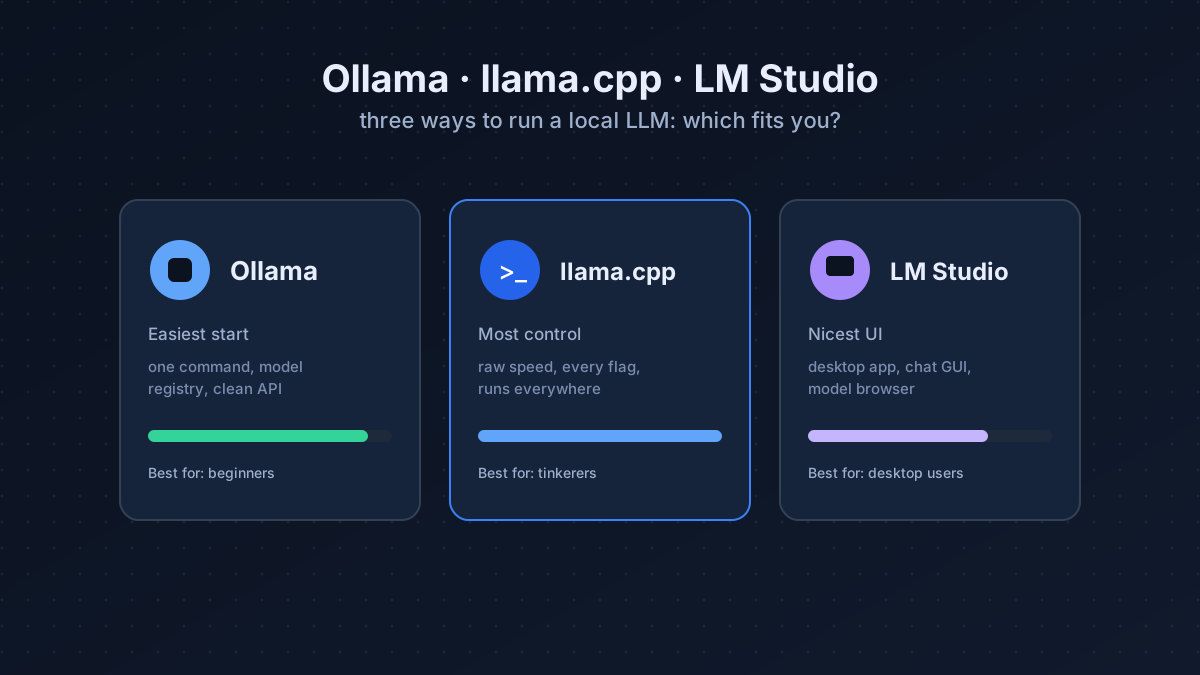
All three run the same underlying GGUF models on the same hardware. The difference is the experience: how much they do for you versus how much they let you tune. Pick wrong and you’ll either fight a command line you didn’t want or hit a ceiling you can’t get past. Here’s the fast way to choose, plus the exact commands to get running with each.
Ollama: easiest start
Install it, run one command, and you’re chatting. It manages downloads, serves a clean local API, and “just works” across Mac, Windows, and Linux:
# install (macOS/Linux), then:
ollama run llama3.1:8b
That’s it. Ollama pulls the model and drops you into a chat. It also exposes an
OpenAI-compatible API on localhost:11434, so you can point existing code at it by
changing one URL. That single feature is why most developers start (and often stay) here.
- Best for: beginners, developers who want a local API, anyone who values “it works.”
- Trade-off: fewer low-level knobs than running llama.cpp directly; it picks quant and settings for you, which is convenient until you want to override them.
- You’ll outgrow it when: you need a specific quant/flag it doesn’t expose, or you’re squeezing every token/sec from limited hardware.
llama.cpp: most control
Ollama is built on top of llama.cpp. Going direct gives you every flag: exact quant, thread count, GPU layer offload, context size, and usually the fastest raw performance:
# build, then run a GGUF you downloaded:
llama-cli -m model.gguf -ngl 99 -c 8192 -p "Your prompt"
-ngl controls how many layers go on the GPU (set high to use all VRAM), -c sets context.
This is the tool to reach for when you want to benchmark, fit a model that almost doesn’t,
or understand exactly what’s happening under the hood.
- Best for: tinkerers, benchmarkers, squeezing the most from limited hardware.
- Trade-off: command-line setup; you assemble the pieces (model files, flags) yourself.
- You’ll outgrow it when: never, really, but most people don’t need this much control for everyday use.
LM Studio: nicest interface
A polished desktop app: browse and download models in a GUI, chat in a clean window, and flip on a local server when you need one. There’s nothing to type: you click a model, it shows you whether it’ll fit your VRAM, and you’re chatting. Great if you’d rather not touch a terminal.
- Best for: desktop users who want a friendly, all-in-one app.
- Trade-off: closed-source app; less scriptable than the other two.
- You’ll outgrow it when: you want to automate, deploy to a headless server, or script the model into a larger pipeline.
Side by side
| Ollama | llama.cpp | LM Studio | |
|---|---|---|---|
| Ease of use | ★★★★★ | ★★★☆☆ | ★★★★★ |
| Control / speed | ★★★★☆ | ★★★★★ | ★★★☆☆ |
| Interface | CLI + API | CLI | Desktop GUI |
| Scriptable | yes | yes | limited |
| Open source | yes | yes | no |
| Best for | beginners | tinkerers | desktop users |
They’re not mutually exclusive
You don’t have to choose just one, and most experienced users don’t. A common setup: LM Studio to quickly try a new model with a friendly UI, Ollama as the always-on API your apps and scripts call, and llama.cpp when you want to benchmark or extract the last few tokens/sec. They all read the same GGUF files, so a model you download for one works with the others.
Performance tuning, whichever you pick
- Offload all layers to the GPU if the model fits (
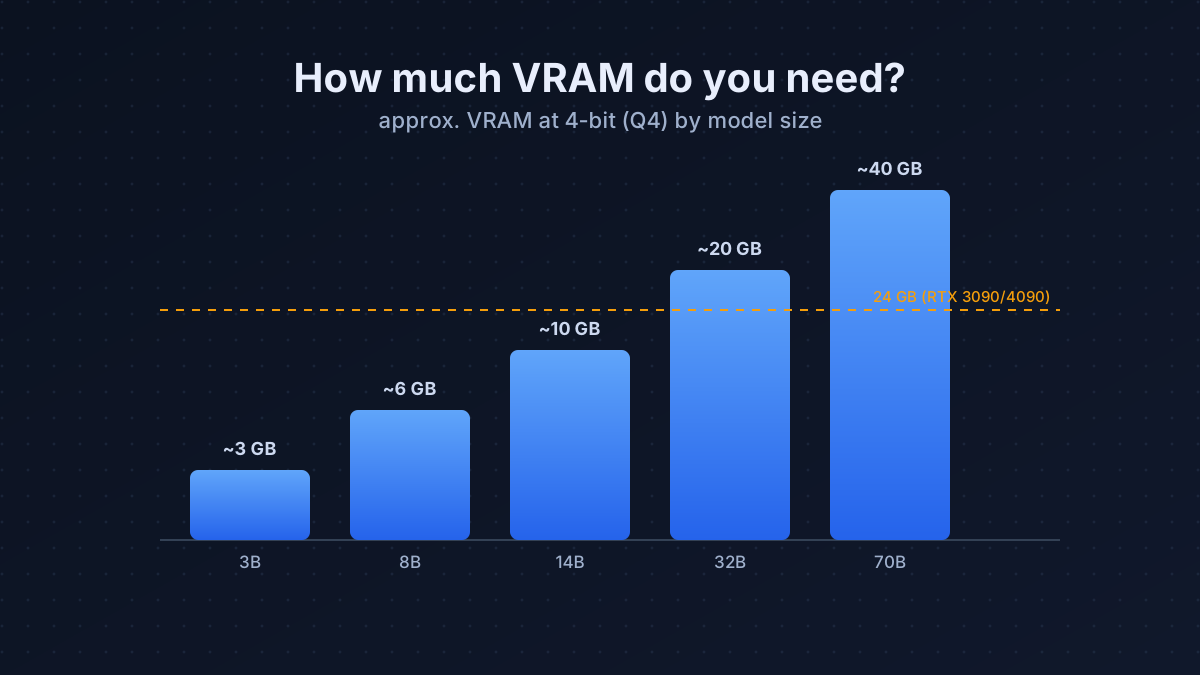
-ngl 99in llama.cpp; automatic in Ollama/LM Studio when VRAM allows). Partial offload to RAM works but is much slower. - Pick the right quant. Q4_K_M is the sweet spot for size vs quality; see the VRAM guide to size it to your card.
- Cap context to what you use; a huge window you never fill just wastes VRAM and slows the first token.
The honest recommendation
Start with Ollama. It covers 90% of needs with zero friction and gives you an API for free. Reach for llama.cpp when you want to benchmark or extract every last token/sec, and use LM Studio if you simply prefer a graphical app. Whatever you run them on, our cheapest-way guide covers the hardware to match.
Frequently asked questions
Should I use Ollama or llama.cpp?
Start with Ollama: one command and you are running. Reach for llama.cpp only when you want maximum speed or fine control over quant, threads, GPU offload, and context.
Is Ollama faster than llama.cpp?
No. Ollama is built on top of llama.cpp, so running llama.cpp directly is usually the fastest because you control every flag. Ollama trades a little speed for convenience.
Which local AI tool is easiest for beginners?
Ollama for a command-line and API workflow, or LM Studio if you prefer a polished desktop app with a model browser and chat window. Both 'just work' with zero setup.